
Screen layout and menus
The building blocks every LMIS screen shares.
All screens in the new LMIS share the same layout. Once you know the building blocks you can find your way around any module.
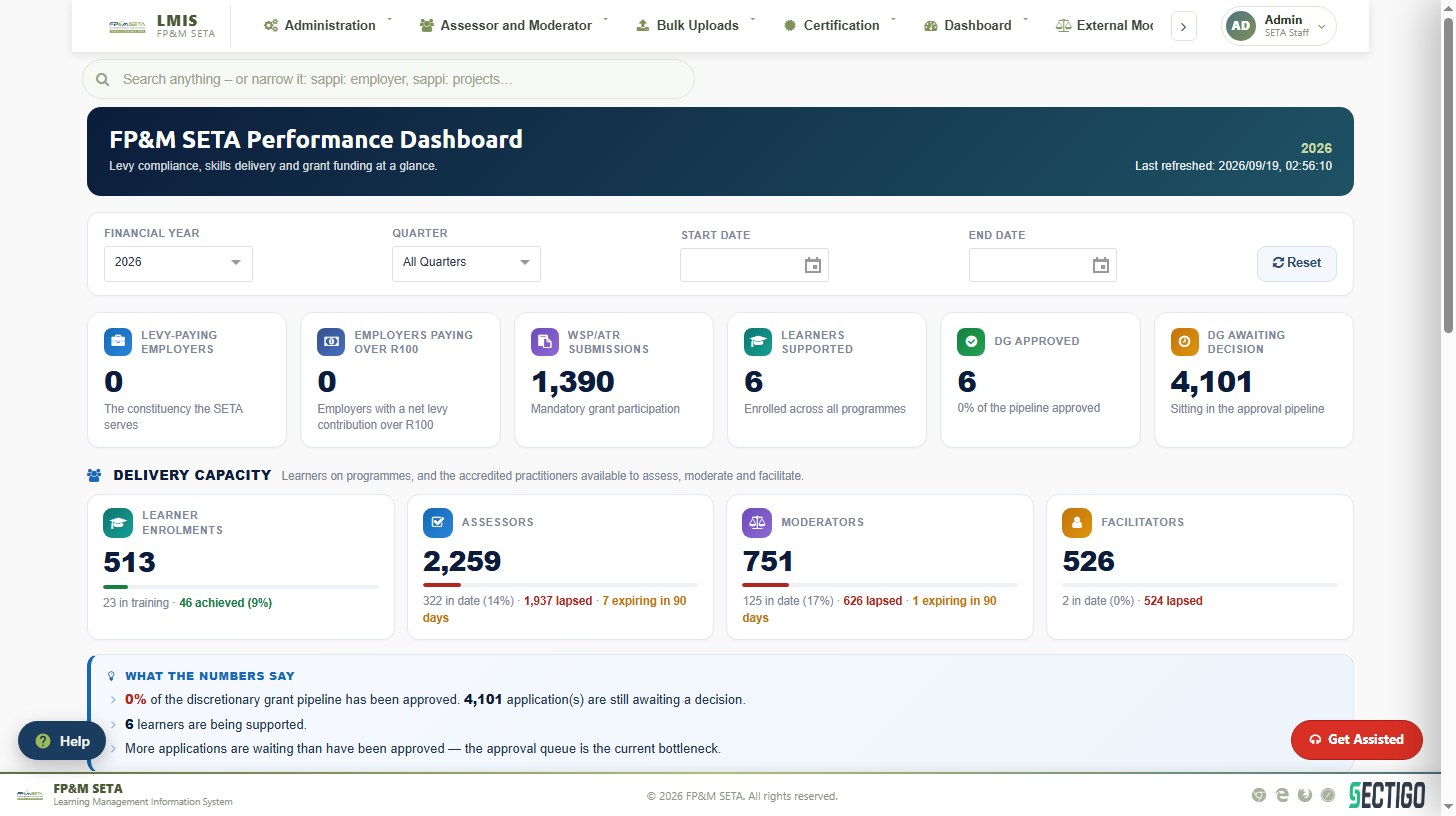
| Area | Description |
|---|---|
| Menu bar (top) | The LMIS logo (click it to return to your dashboard) followed by the top-level menus you are authorised to use. When there are more menus than fit, use the < and > arrows at the ends of the bar to scroll them. |
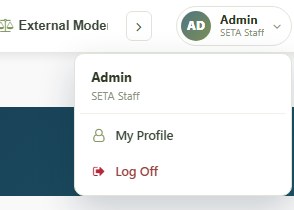
| Profile menu (top right) | Your username and user type. Click it to open My Profile or Log Off. |
| Global search | The search box under the menu bar searches employers, projects, learners and other records from any screen. |
| Page header | A coloured banner with the breadcrumb (module > section), the page title, a one-line description and, where relevant, the primary action button (Add New, New Event, Export…). |
| KPI cards | Summary tiles with live counts. Click a tile with a Click to see… hint to open the underlying records. |
| Work area | Search panels, tabs, data grids and forms. |
| Get Assisted | A red button fixed to the bottom right of every page that opens the support panel. |
| Footer | Copyright, supported browser icons and the SSL security seal. |
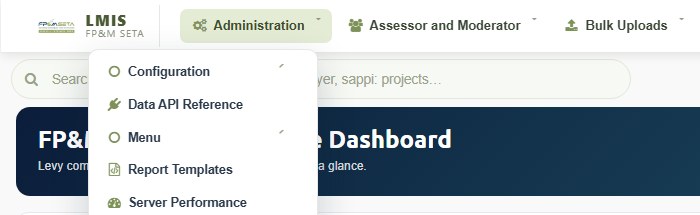
Menus. Hover over or click a top-level menu to open it. Items with a small arrow contain a sub-menu; hover over them to reveal the pages inside, then click a page name to open it. External users see only the menus relevant to their user type.
Profile menu. Click your name at the top right to open My Profile or to Log Off.
Was this article helpful?Thank you for your feedback.