Evaluate assessor and moderator applications
Allocate evaluators, give feedback, send for approval and maintain the register.
Applications
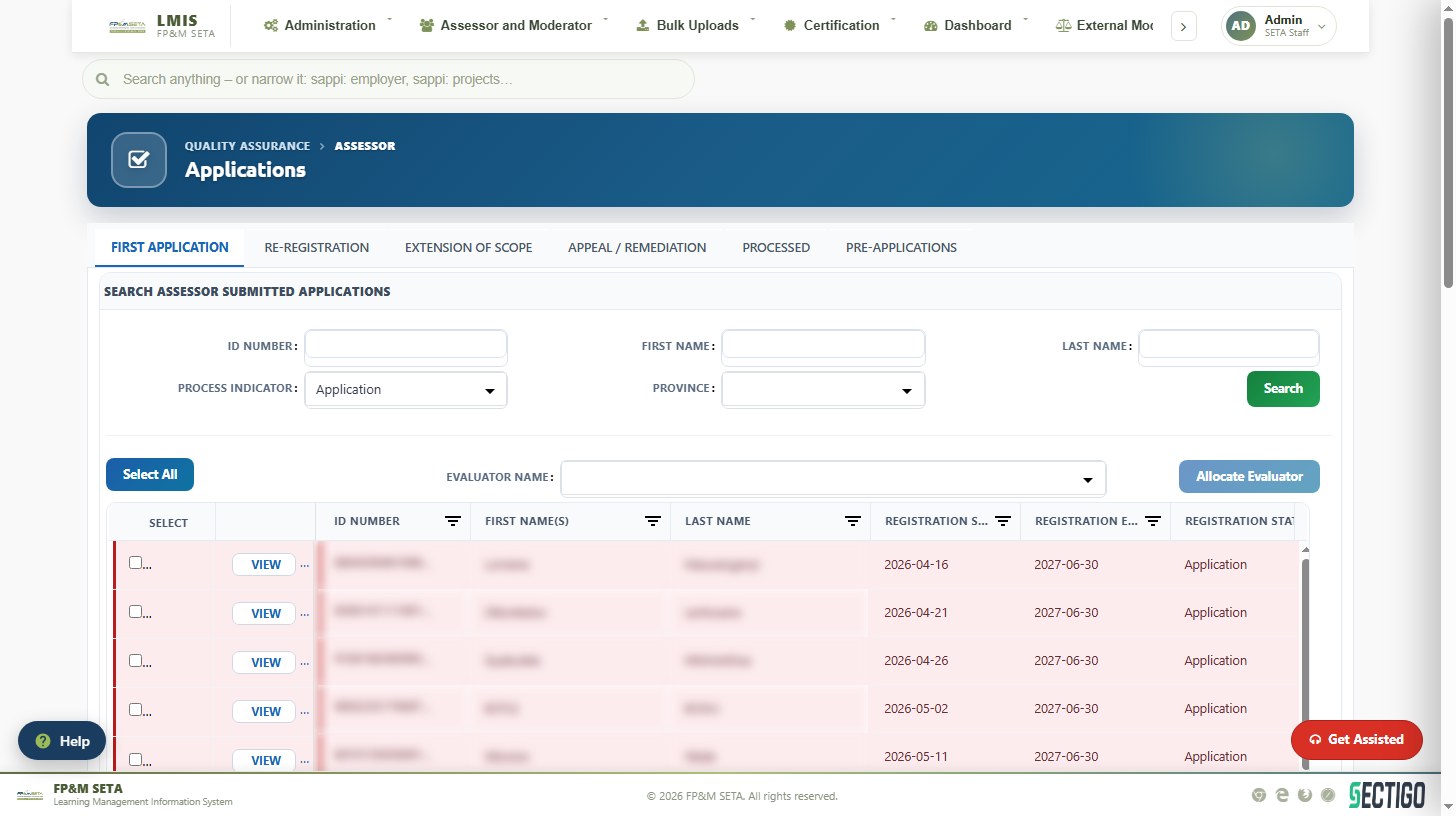
Assessor and Moderator > Registration > Assessor (or Moderator) opens the applications workspace with tabs for First Application, Re-registration, Extension of Scope, Appeal / Remediation, Processed and Pre-applications.
- Search by ID Number, First Name, Last Name, Process Indicator or Province and click Search.
- Tick the applications to allocate, choose an Evaluator Name and click Allocate Evaluator.
- Select an application to open its details and documents below the grid. Send Feedback Email requests outstanding information, Send for Approval submits the completed evaluation, and Send Report issues the outcome with the assessor/moderator report.
Registered practitioners
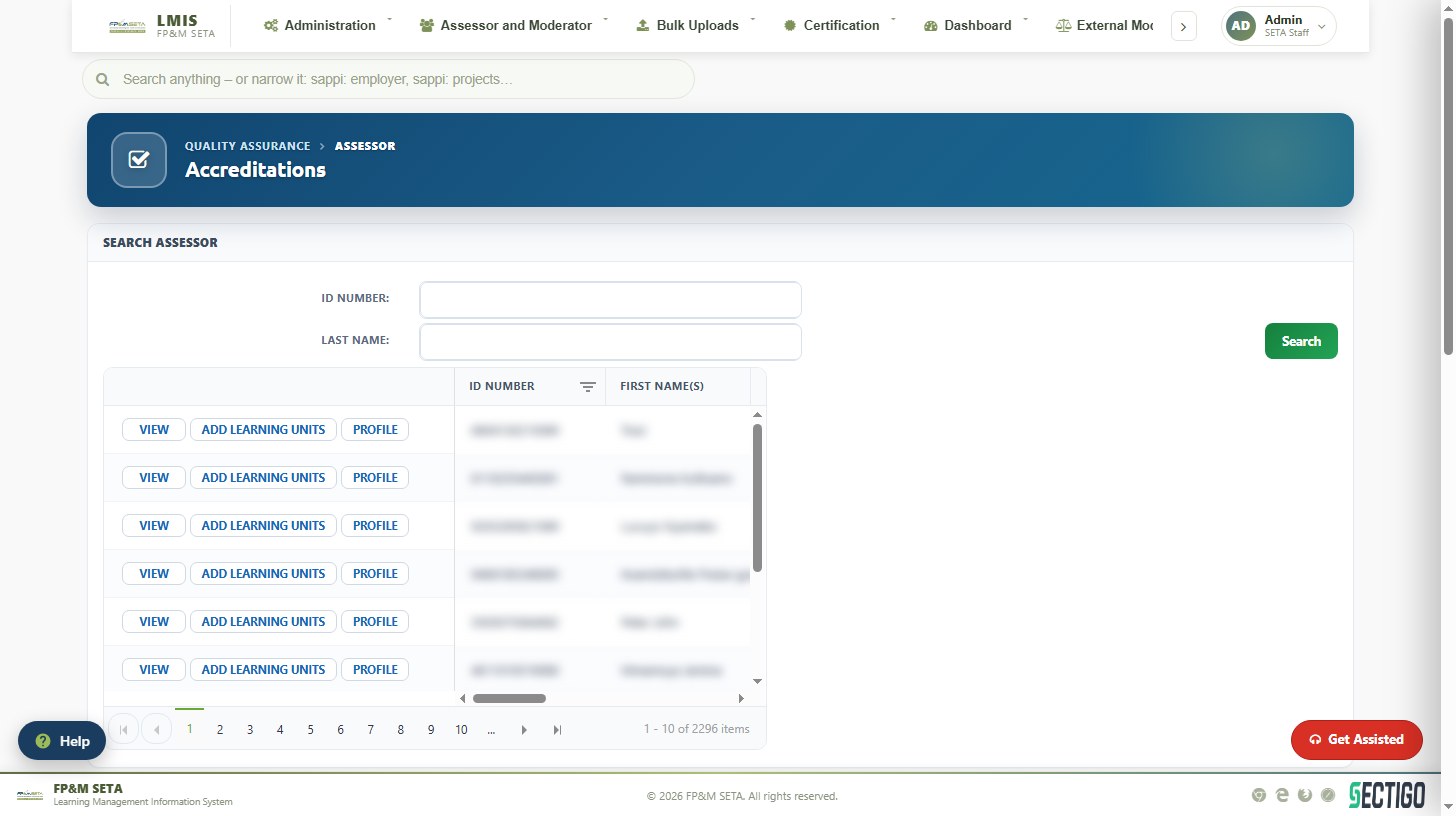
Assessor and Moderator > Registered > Assessor / Facilitator / Moderator lists the register. Search by ID Number or Last Name; each row offers View, Add Learning Units (extension of scope) and Profile. The Qualifications panel shows learning units with registration start and end dates; lapsed registrations are flagged on the dashboards.
Migration (capture a practitioner)
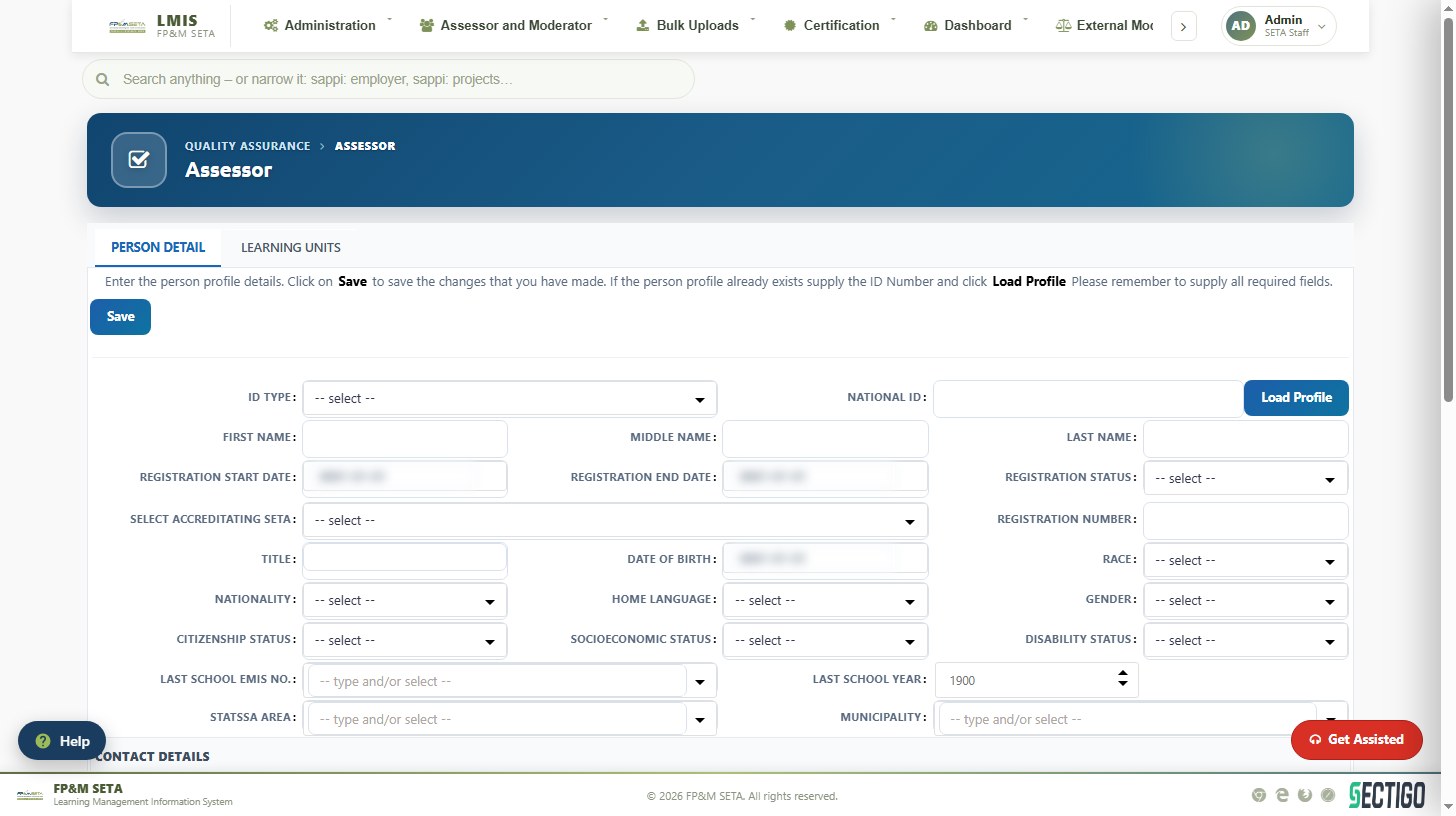
Assessor and Moderator > Migration opens the person capture form for a practitioner who is not yet on LMIS. Enter the ID Type and National ID and click Load Profile to fetch an existing person, or complete the form and click Save. The Learning Units tab records the scope.