Projects — DG pipeline, tracking and commitment register
DG submissions, Funded Project Tracking, the commitment register, DG windows and SETA-funded employer approvals.
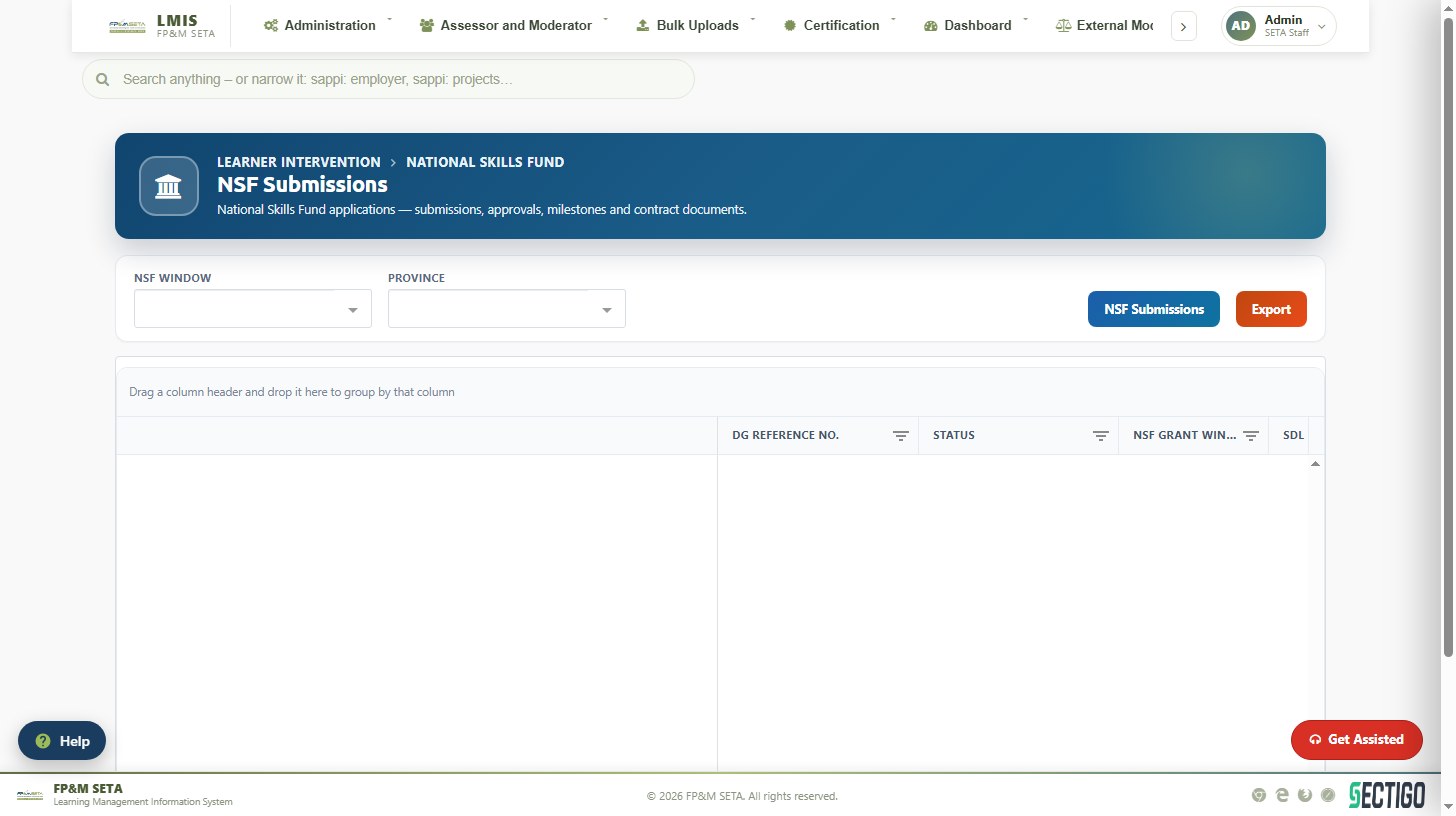
DG submissions
Projects > DG Applications shows every discretionary grant application with its submissions, approvals, milestones and contract documents. Filter by DG Window and Province; the Discretionary Grant dashboard panel summarises the selected financial year (Show expands it). DG Submissions opens the applications workspace and Export downloads the grid.
On a contracted application (contract number starting CO/) chips at the top lead to the project's MOA signing (MOA e-signing) and Deceased learners (Declare deceased learners).
Funded Project Tracking
Shows where every DG project sits, how long it has been there and which ones need somebody. The header shows Committed, Approved projects, Pending approval and Stuck; Project office opens the Project Office.
| Tab | What it lists |
|---|---|
| Approved projects | Contracted projects. Workspace on a row opens the project in the Project Office. |
| Pending approval | Applications on their way to approval. Click a stage on the stage strip to list only that stage. |
| Not submitted | Applications captured but never submitted. |
| Delivery plans | Each project's plan: not planned, overdue milestones, slipping or on track, with progress, start variance and owner. Opens the delivery plan. |
Choose the Funding window and tick Stuck only to narrow the list; on Delivery plans, Behind plan only and With a plan only. The grid shows the DG reference, employer, intervention, stage, how long it has been Untouched, What is holding it up, learners and the committed amount.
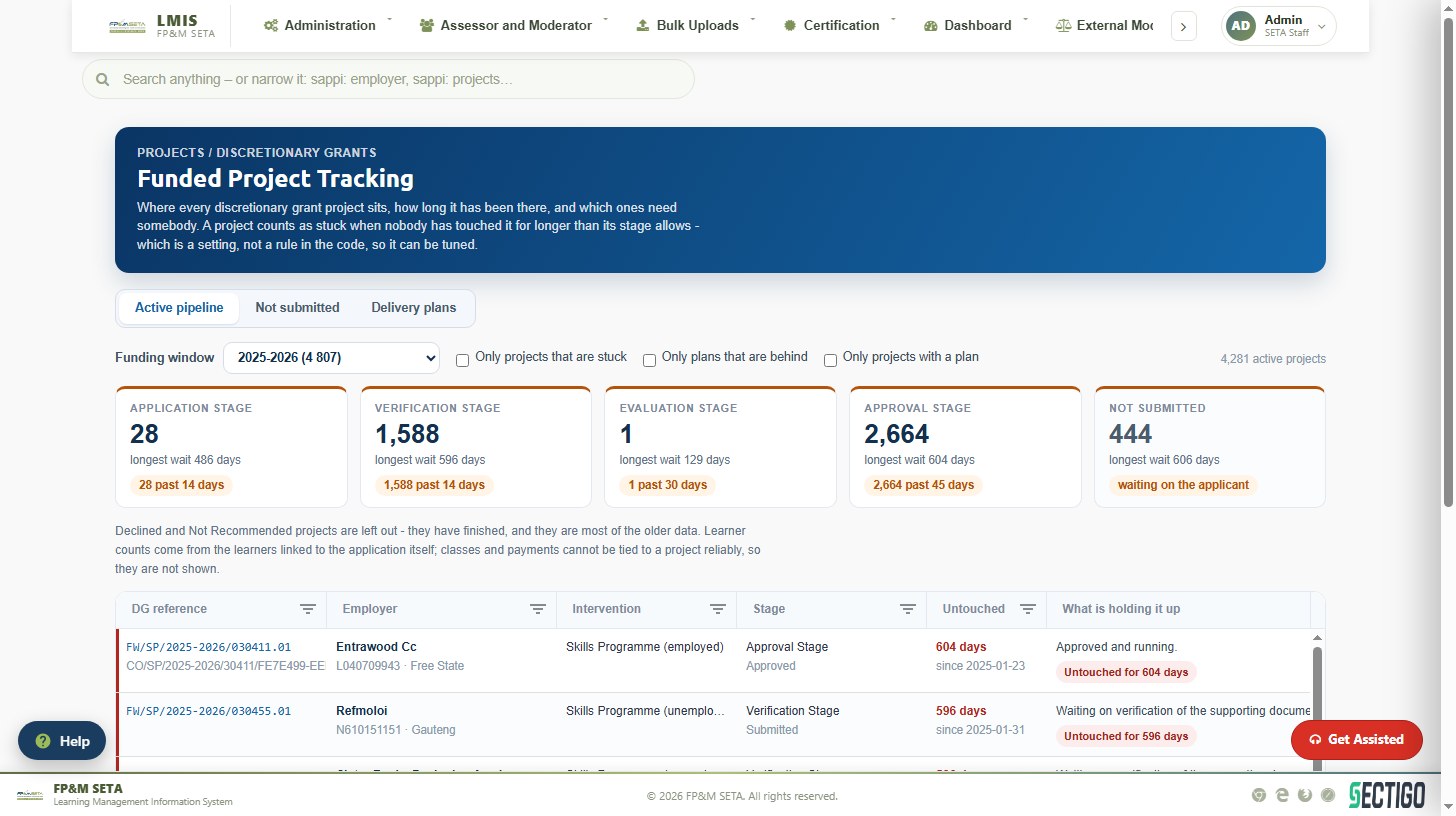
A project counts as stuck when nobody has touched it for longer than its stage allows. The allowance is a system setting (Administration > Configuration > System Settings), not a rule in the code.
Project Learners
Project Learners finds learners on DG-funded projects. Search by National ID, Full Name or Contract No (suggestions appear after three characters), then Search; Clear resets. Without a search the grid shows the newest 1,000 learners. View opens the learner and Export to Excel downloads the list.
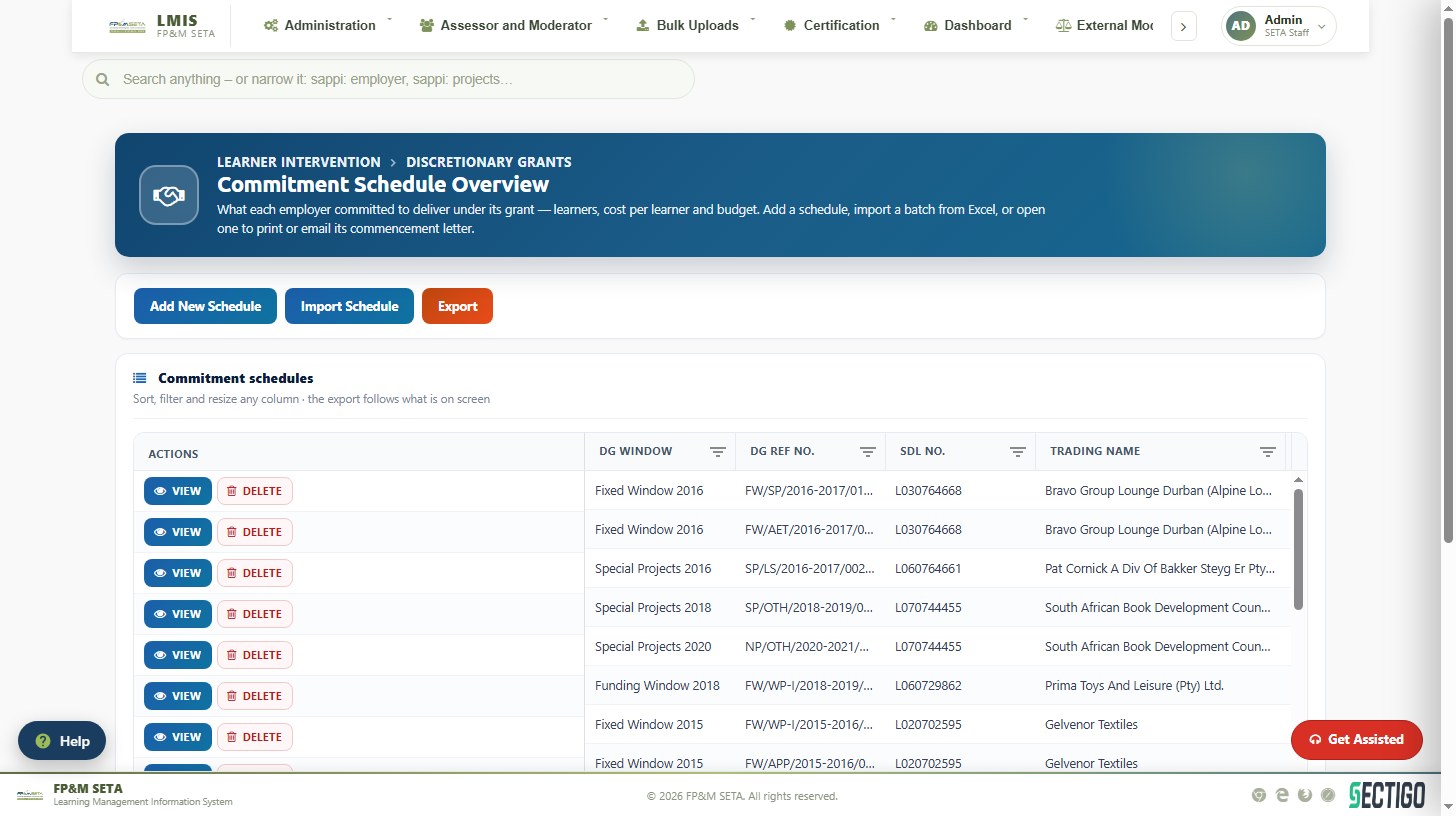
Commitment register
What each employer committed to deliver under its grant — learners, cost per learner and budget. Add New Schedule captures a commitment, Import Schedule loads a batch from Excel step by step, View opens a schedule to print or e-mail its commencement letter, and Export downloads the register.
Setting up a DG window
DG Window Setup (Administration > Configuration) opens a new grant window in five steps, moving with Back and Next:
- Window and dates — the window and when it opens and closes. The window's financial year decides which grant rates apply.
- Grant rates — the rate per intervention; Copy rates from brings last year's across to edit.
- Interventions on offer — what employers may apply for in this window.
- Appointment letter — the wording and tranche date on the DG approval letter.
- Review and go live.
SETA-funded employer registrations and NSF
Employers receiving SETA funding register a representative per financial year under SETA Funded Employer Registrations (select the Financial Year, Create Registration); staff review them under SETA Funded Employer Approvals, and Employer Correspondence keeps the letters exchanged. NSF > NSF Overview lists National Skills Fund applications by NSF Window and Province.