Administration — configuration, windows and system settings
Lookup tables, DG/MG windows, System Settings, Report Templates and reference uploads.
Configuration (lookup tables)
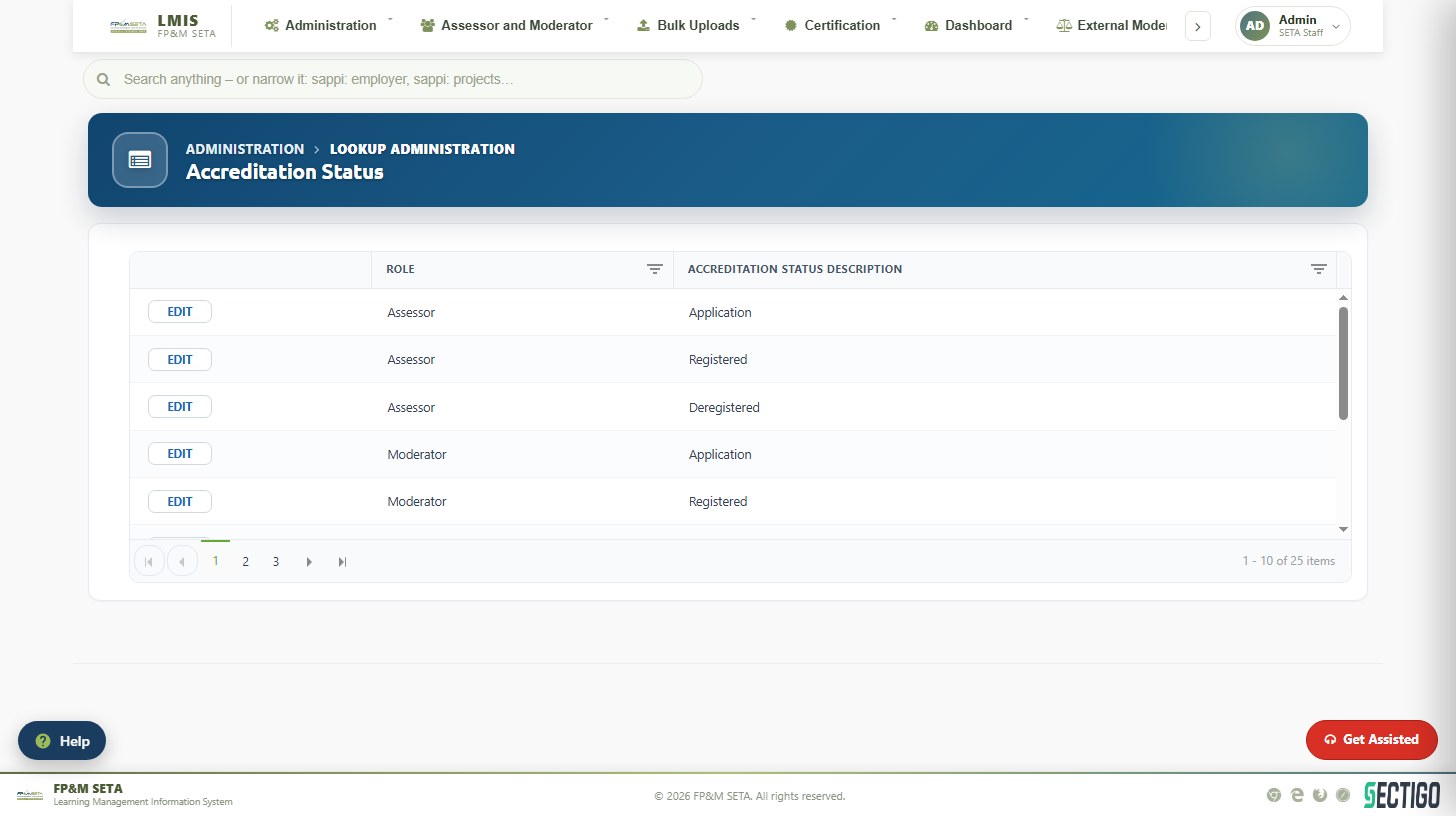
Administration > Configuration holds the reference lists used throughout LMIS: Accreditation Status, Achievement Status, Achievement Type, Application Document, DG Documents, DG Intervention Type Documents, DG Window, Disability Status, Grants, Learner Intervention Documents, Learning Programme Types, MG Window, NSF DG Window, NSF Grants, OFO, SAQA Criteria and System Settings. Open a lookup, click Edit on a row to change it, or complete the form at the top and click Save to add a value.
DG, MG and NSF windows
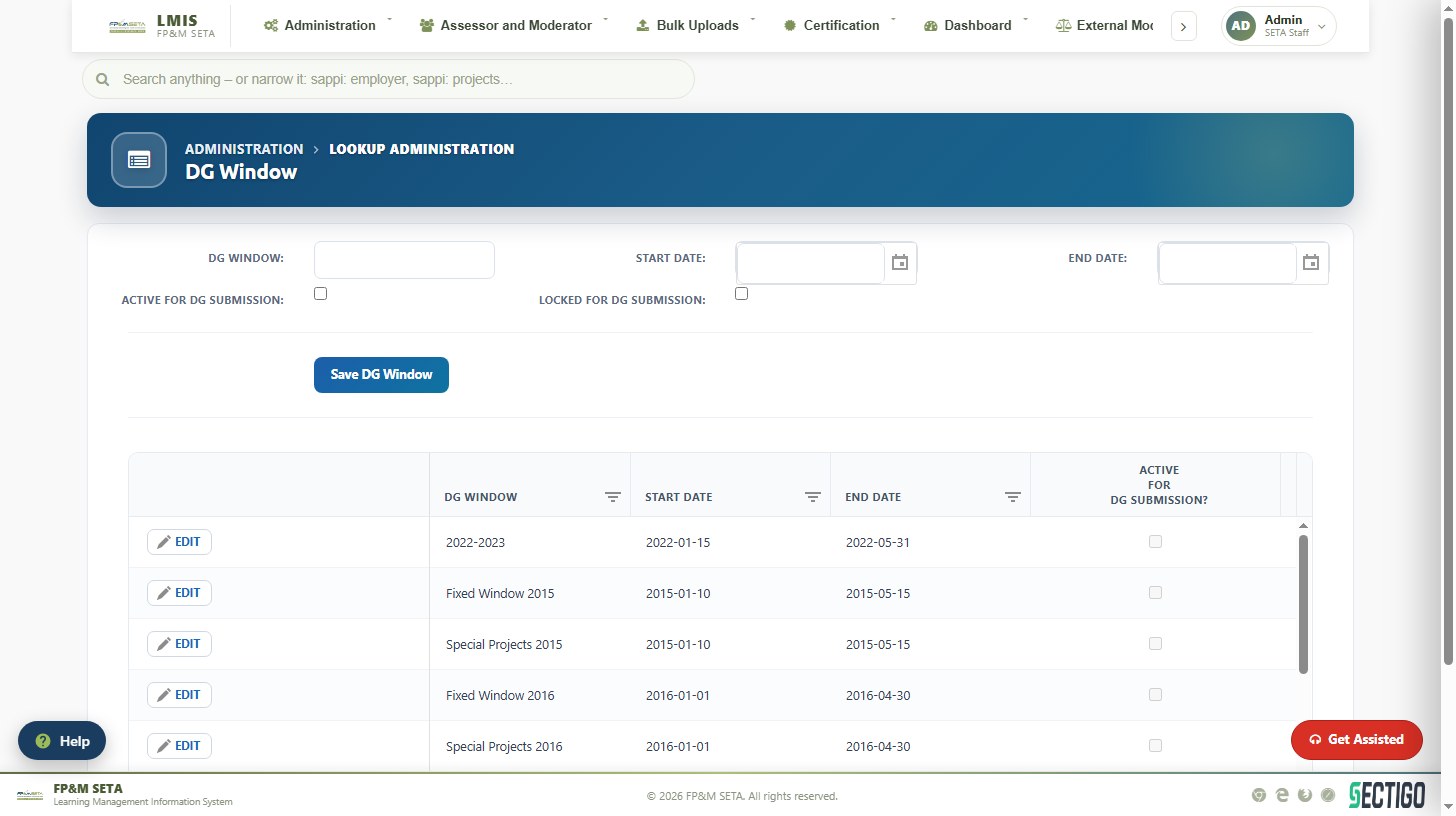
Funding windows control when external users may submit. To open a Discretionary Grant window go to Configuration > DG Window, enter the DG Window name, Start Date and End Date, tick Active for DG Submission (and untick Locked) and click Save DG Window. Untick Active or tick Locked to close it. MG Window works the same way for the WSP/ATR financial year, and NSF DG Window for National Skills Fund windows.
System Settings
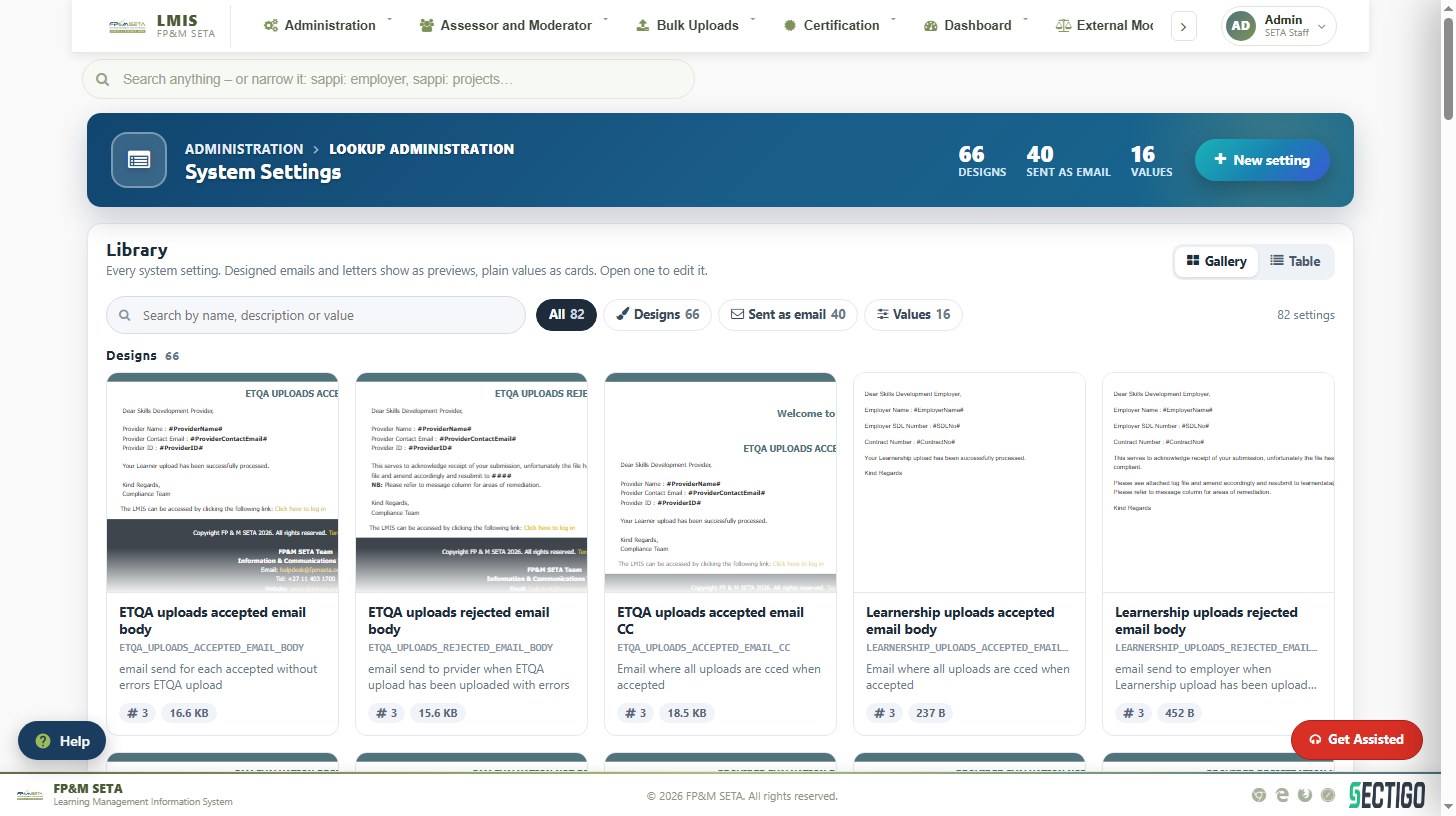
The library of every system setting: designed e-mails and letters (ETQA upload accepted/rejected, WSP acknowledgement and approval, CAM evaluation, learner achievements, notices…) and plain values. Use Gallery or Table view, the search box and the All / Designs / Sent as email / Values filters to find a setting, then open it to edit. New setting adds one.
Report Templates
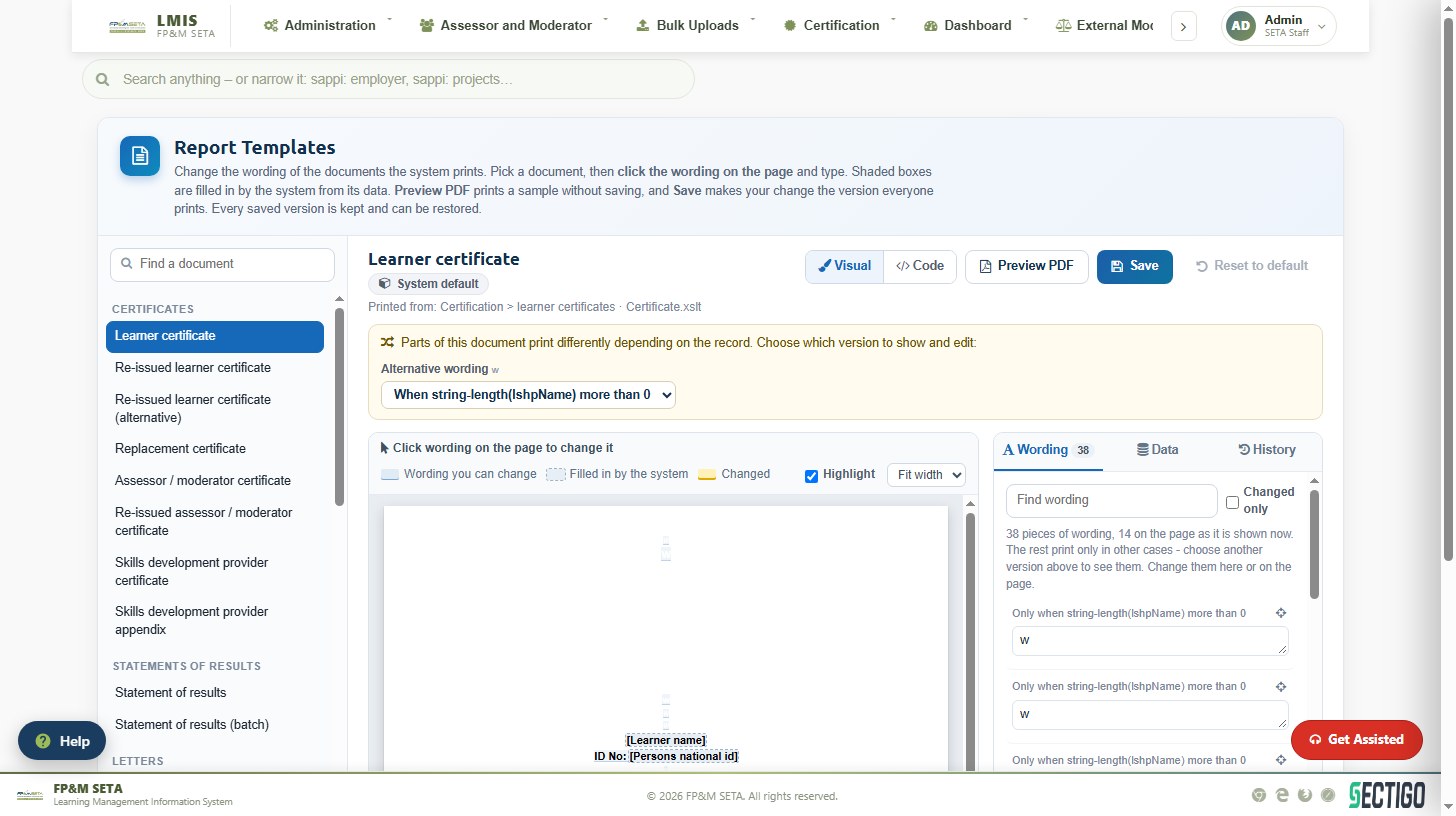
Change the wording of the documents LMIS prints — certificates, statements of results, letters and agreements.
- Pick a document on the left (Find a document filters the list).
- In the Visual view click any wording and type the new text. Shaded boxes are filled by the system and cannot be edited. Where a document prints differently per record, choose the version under Alternative wording.
- Preview PDF prints a sample without saving; Save makes the change live. Every version is kept under History and can be restored; Reset to default returns to the system default.
Uploads
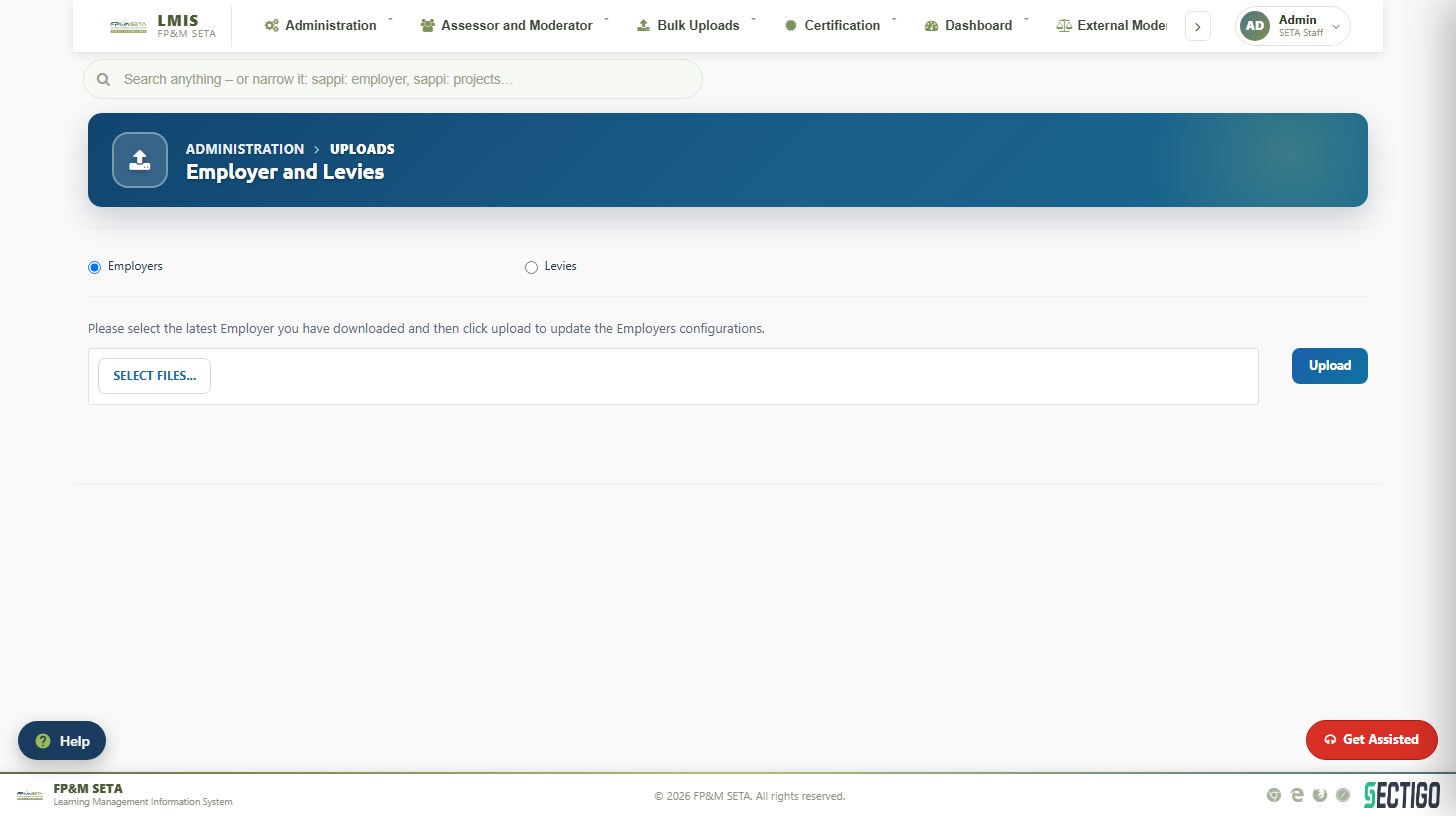
Uploads > Organisations and Levies loads the employer and levy files received from SARS/DHET: select Employers or Levies, click Select files…, choose the latest file and click Upload. SAQA XML loads the SAQA qualification and unit standard extract into the Qualifications module.